
Guide
Install 3X-UI Sanaei with VPS to VPN
Black Fox Group makes VPS to VPN. You use the program on Windows or Android, connect to your VPS over SSH, and install the 3X-UI Sanaei panel without typing Linux commands.
Get a clean Ubuntu 22 or 24 VPS first. You need the IP, SSH username, password, and port. Two GB RAM, two CPU cores, and 20 GB disk is the usual minimum.
Download the Windows zip or the Android apk from the official download page on foxnext.net. Install the program, then open it.
- Open Center Server Setup and save the VPS login. Do not leave spaces in IP, user, password, or port.
- Use SSH Connect. Wait until the connection mark is on. If it fails, fix SSH before you continue.
- Run Full Deploy. Watch the log. When it shows Successful, the panel is on the server.
- Open Panel Login Info. Copy the panel URL, username, and password. Paste the URL in a browser and sign in.
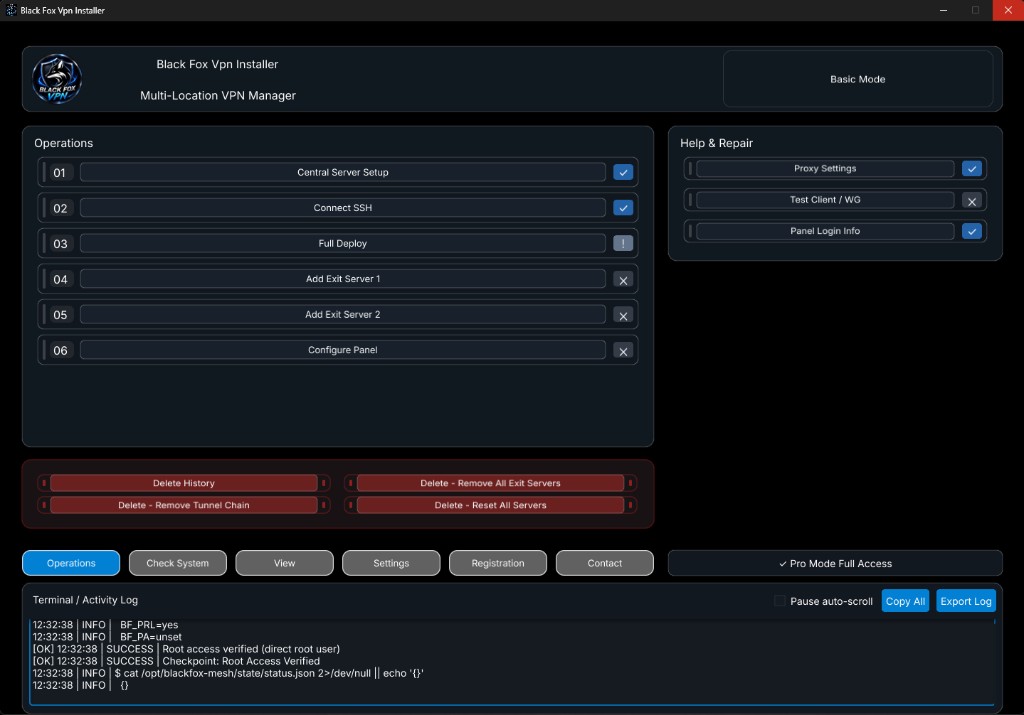
On Android, turn the phone VPN off while you set the center server, connect SSH, and run Full Deploy. On Windows the program handles that itself.
If you use Basic mode, add Exit servers after the panel is up. Save Exit 1, wait for Successful, then do Exit 2 the same way. On Android keep the phone VPN on when you add exit servers.
Official files: VPS to VPN-Setup.zip, VPS to VPN-Android.apk, and Black-Fox-Config-Builder.apk. Take them only from foxnext.net.
Full install · Manual vs auto · Full Deploy · Errors · Tutorials · Download
Black Fox Group makes VPS to VPN. You use the program on Windows or Android, connect to your VPS over SSH, and install the 3X-UI Sanaei panel without typing Linux commands.